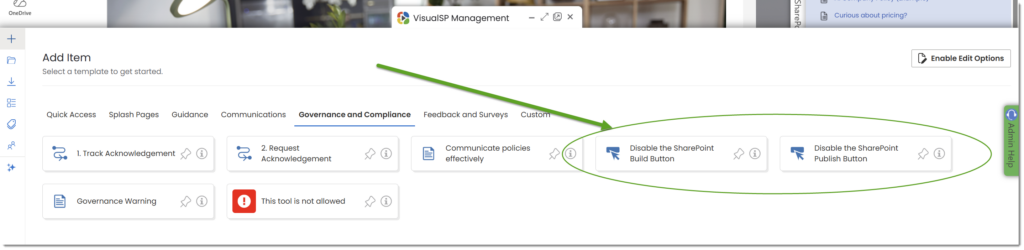
- You can find the style section by going to the menu in the Help panel and clicking on Manage My Subscription.

- Click on the Applications tab in the management screen menu

- Once the Applications panel opens, click 1) Configure Applications, then 2) Filter by Application Group and finally scroll through the application list and click on the desired application name. In our example we are going to edit 3) Loom Help
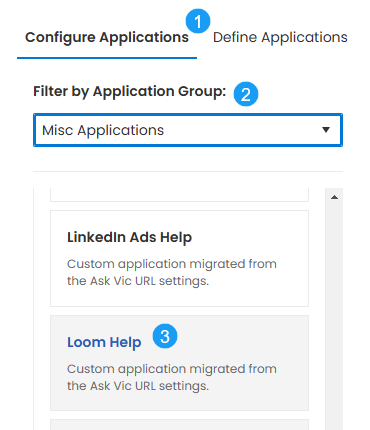
- Once you select your application the configuration panel will update with the selected application properties. Scroll down to until you see the following options:
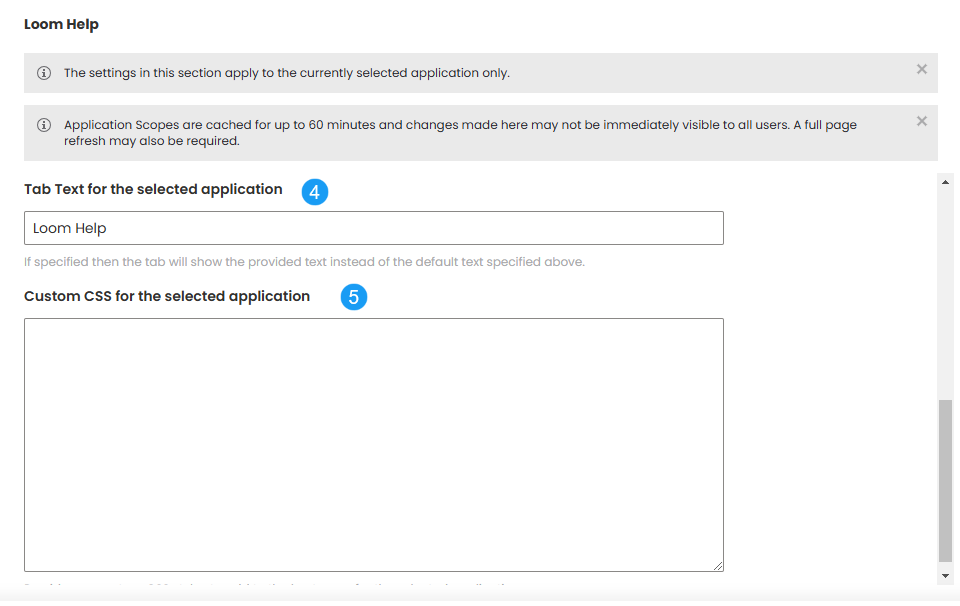 4) is the Tab Text to be displayed for the selected application and 5) is where you can paste your custom CSS for the selected application. No <style> tag is necessary. Just paste the code into the box and remember to save your work.
How do I know what CSS selectors and styles to use?
Custom styles require some understanding of how CSS and the browser dev tools works. If you understand how CSS works, but you need assistance with the details of a specific selector or styles to apply, consider using Copilot (or your organization's other approved AI tool). This is a good example of a low-risk place to have Copilot amplify your own expertise. Here's an example to illustrate how this works. Some customers have requested the ability to hide the 'Publish' button on the new SharePoint app bar.- Open a text file where you can type and paste information about the element you wish to style. (Do not use a Word document or anything else that allows rich text formatting.)
- Return to the application you want to customize and right-click on the element. Choose 'Inspect' from the menu.
- This will open the dev tools panel and automatically find the HTML for the button you selected.
- In dev tools, right-click the button and choose 'Copy > Copy Selector'.
- Paste this copied text into the text file you are building.
- Return to your dev tools, and right-click the HTML element again. This time choose 'Copy element'.
- Paste this into a new line in your text file, and add some explanatory text around the HTML snippets.
Your finished prompt should look something like this (example - don't use this exactly):
I want to hide this button.
Rewrite the selector and style for me to be as reliable as possible.

Selector:
#sp-appBar > div > div > div > div.fui-TabList.spui AppBar...
> div > button:nth-child(3)

Element:
<button type="button" data-tabster="...
- Open a Copilot panel or page in your browser, and paste the contents of your text file into the Copilot prompt.
- Copilot will write a simple CSS statement you can likely copy / paste into the VisualSP 'Custom CSS for the selected application' blank.
Something like:
.spui-AppBar button[aria-label^="Publish"] {display: none !important;} - Save your change, close the VisualSP 'manage my subscription' dialog, and refresh the page.
- Be sure to test the page thoroughly to make sure you did not customize more than the element you intended.
- VisualSP does not allow JavaScript or other types of client-side techniques that provide functional effects or automation. Only cosmetic CSS statements are allowed.
- Due to web caching, your change may not show up for other users consistently for up to an hour. If you don't see the effects in your own browser immediately, see the following article about how to temporarily disable server cache for yourself. If you still do not see the effects, there is likely a problem with the CSS style you pasted into the blank.